

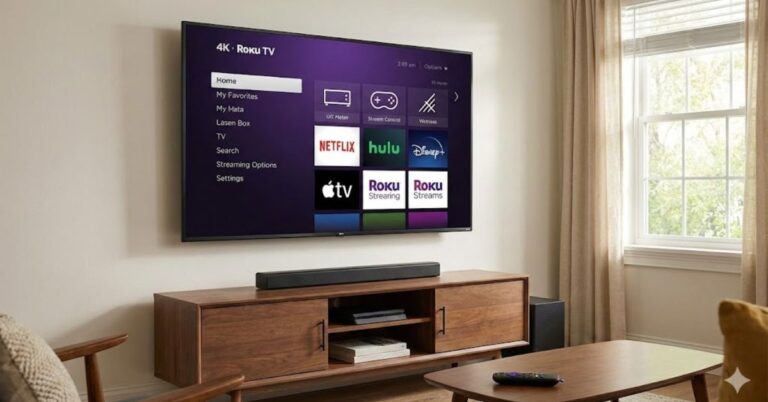
Is your Roku TV moving slower than usual? You click a button on the remote, but the screen takes forever to respond. Or maybe your favorite show on Netflix keeps buffering, and apps crash unexpectedly.
Nothing kills a movie night faster than a sluggish streaming device.
If you are experiencing these glitches, the solution is often simple: you need to learn how to clear cache on Roku TV. Unlike a computer or a smartphone, Roku doesn’t have a simple “clear history” button in the settings menu. However, there are specific tricks including a “secret” remote code sequence that act as a system flush, removing temporary files and freeing up memory.
In this guide, we will walk you through the step-by-step methods to clear your Roku’s cache, speed up your interface, and get back to binge-watching without the buffer wheel.
Table of Contents
Why Is My Roku TV So Slow? (Understanding Cache)
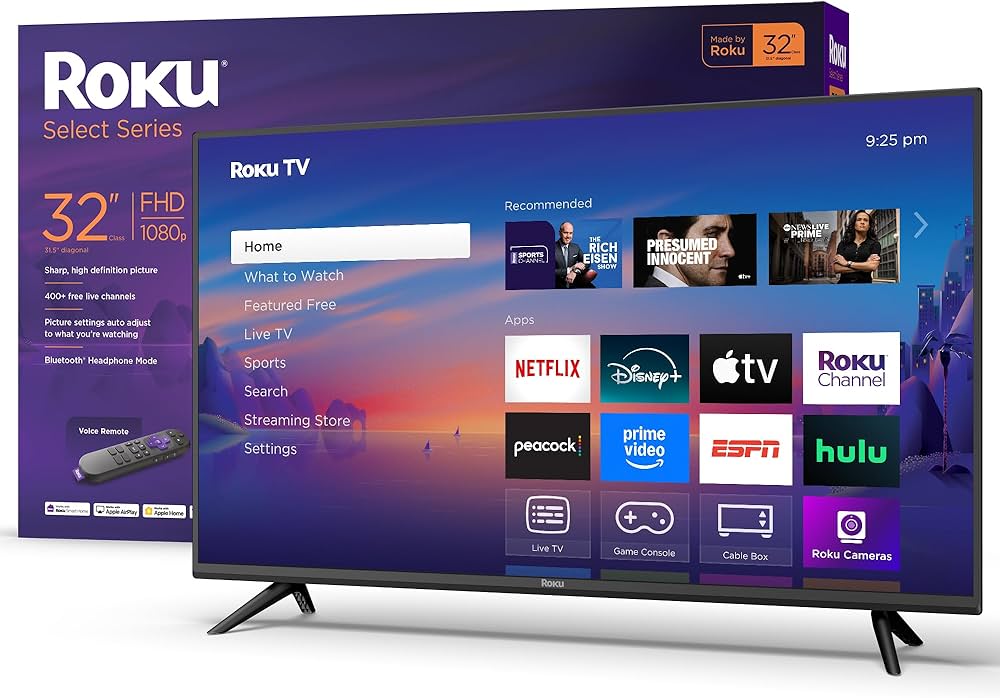
Before we jump into the fix, it helps to understand the problem. Like any computer, your Roku TV stores temporary data (cache) to help apps launch faster and run smoother.
However, over time, this data can become corrupted or simply too large. When the cache gets clogged, you might notice:
- Delayed remote response: You press a button, and the TV reacts 2 seconds later.
- App crashes: Apps like YouTube or Hulu close by themselves.
- Buffering: Videos stop and start, even with a good internet connection.
- Audio/Video desync: The sound doesn’t match the lips moving on screen.
Clearing the cache refreshes the system memory (RAM), forcing the device to reload fresh data, which usually solves these performance hiccups.
Method 1: The “Secret” Remote Code to Clear Cache (Best Method)
This is the most effective way to clear the cache on almost any Roku device, including the Roku Stick, Roku Express, and Roku TVs (TCL, Hisense, Sharp). It isn’t listed in the standard menu, but it triggers a system reboot and cache flush.
Step-by-Step Instructions:
Follow this sequence exactly using your Roku remote. It helps to do it at a steady, moderate pace.
- Go to the Home Screen: Press the Home button to ensure you are on the main dashboard.
- Press Home 5 Times: Press the Home button five times.
- Press Up: Press the Up arrow button once.
- Press Rewind 2 Times: Press the Rewind (<<) button twice.
- Press Fast Forward 2 Times: Press the Fast Forward (>>) button twice.
What Happens Next?
If you entered the code correctly, your screen might freeze for a few seconds. Then, the Roku will shut down and reboot automatically. The startup animation might take a little longer than usual this is a good sign! It means the device is rebuilding its cache.
Pro Tip: If it doesn’t work the first time, try entering the sequence slightly faster or slower.
Method 2: System Restart (The Soft Reset)
If the remote code feels too complicated, or if you prefer navigating through the menu, a System Restart is the next best option. Note that simply turning your TV off and on with the power button usually puts it in “Standby Mode” rather than fully shutting it down. You need a full restart to clear the temporary memory.
How to do it:
- Press the Home button on your remote.
- Scroll down and select Settings.
- Select System.
- Scroll to Power (if you don’t see Power, skip to the next step).
- Select System Restart.
- Click Restart and confirm.
Your Roku will turn off and boot back up, clearing out minor glitches and active memory processes.
Method 3: Remove and Reinstall Problematic Channels
Sometimes, the issue isn’t with the whole Roku system, but with a specific app (like Netflix or Prime Video) hoarding corrupt data. Roku doesn’t let you clear cache for individual apps, so the workaround is to delete and reinstall the app.
Follow these steps to refresh an app:
- Highlight the App: Go to your Home screen and hover over the problematic channel.
- Open Options: Press the Star (*) button on your remote.
- Remove Channel: Select Remove channel from the pop-up menu and confirm.
- Restart Your Roku: Important! Do not skip this. You must restart the Roku (Method 2) after deleting the app to fully flush the old data.
- Reinstall: Go to the Streaming Store, find the app, and add it back.
You will need to log in again, but this often fixes persistent crashing issues.
Method 4: The Hard Reset (Unplugging)
If your screen is frozen and you can’t access the menus or use the remote code, you need a hardware reset. This is often called “power cycling.”
- With the TV on, unplug the power cord from the wall outlet or the back of the TV.
- Wait for at least 60 seconds. (Don’t rush this; the capacitors need time to discharge).
- Plug it back in and turn it on.
This forces a complete cold boot, which is excellent for clearing cache on Roku TV when the system is unresponsive.
Troubleshooting: When Clearing Cache Doesn’t Work
If you have tried the secret code, the restart, and the app reinstall, but your Roku is still slow, you might be dealing with a deeper issue.
1. Check Your WiFi Connection
Sometimes, what looks like lag is actually a network struggle. Go to Settings > Network > Check Connection. If your signal is “Fair” or “Poor,” try moving your router closer to the TV or using a WiFi extender.
2. Factory Reset ( The Last Resort)
This will wipe everything your logins, your downloaded apps, and your custom settings. Only do this if nothing else works.
- Go to Settings > System > Advanced System Settings.
- Select Factory Reset.
- Follow the on-screen code prompt to confirm.
Conclusion:
A slow streaming device can be frustrating, but you don’t need to go out and buy a new TV just yet. Learning how to clear cache on Roku TV is a quick, free maintenance trick that can extend the life of your device and improve your viewing experience.
Whether you use the “secret” remote sequence or a simple system restart, clearing out that digital cobweb allows your Roku to breathe easier and run faster.
Is your Roku still giving you trouble after trying these steps? It might be time to check your internet speed or consider if your device is outdated.
Frequently Asked Questions:
Here are answers to common questions about managing your Roku’s performance.
Does Roku have a clear cache button?
No, Roku does not have a specific “Clear Cache” button in its settings menu. You must use the remote code sequence (Home x5, Up x1, Rewind x2, Fast Forward x2) or perform a system restart to achieve the same result.
Will clearing the cache delete my apps or logins?
No. Clearing the cache using the remote code or a system restart will not delete your apps or log you out of your accounts. It only removes temporary system files. However, a Factory Reset will delete everything.
How often should I clear the cache on my Roku?
There is no set rule, but it is good practice to restart your Roku (which clears the cache) once a month, or whenever you notice the interface becoming sluggish or apps failing to load.
Does the Roku cache code work on all devices?
Yes, the “secret” remote code generally works on all Roku devices, including the Roku Stick 4K, Roku Express, Roku Ultra, and Roku TVs manufactured by TCL, Hisense, and others.
