

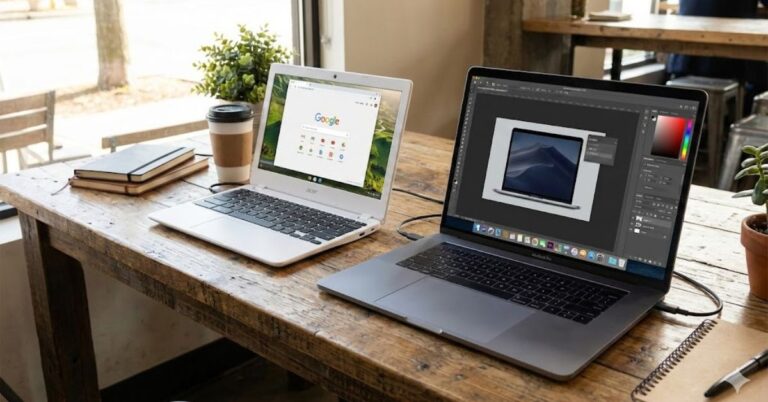
Walking down the electronics aisle or browsing Amazon can be confusing. You see two devices that look identical same screen size, same keyboard, same sleek design but one costs $300 and the other costs $1,000. This brings up the most common question for tech buyers: What is the difference between Chromebook and laptop devices?
While a Chromebook technically is a type of laptop, they function very differently under the hood. The main difference lies in the operating system: Chromebooks run on Google’s web-based ChromeOS, while traditional laptops run on Windows or macOS.
This distinction changes everything about how you use the device, from saving files to installing software. In this guide, we will dive deep into the pros, cons, and specific use cases to help you decide which machine fits your lifestyle.
Table of Contents
1. Operating System: The Core Difference
The most significant “under the hood” difference is the Operating System (OS). This is the software that manages your computer’s hardware and resources.
ChromeOS (The Chromebook Engine)
Chromebooks run on ChromeOS, a lightweight operating system developed by Google. It is essentially the Google Chrome web browser on steroids.
- How it works: Everything is web-based. You use Google Docs instead of installing Microsoft Word, and you watch Netflix in the browser rather than downloading an app (though many now support Android apps).
- The Benefit: Because the OS is so simple, it is fast, boots up in seconds, and doesn’t require expensive hardware to run smoothly.
Windows and macOS (Traditional Laptops)
Traditional laptops run on Microsoft Windows or Apple’s macOS.
- How it works: These are “heavy” operating systems designed to run complex software locally on your machine. You can download .exe or .dmg files, install heavy games, and manage complex file structures.
- The Benefit: You have total freedom to install almost any software, from Adobe Premiere Pro to AAA video games.
2. Software and Application Compatibility
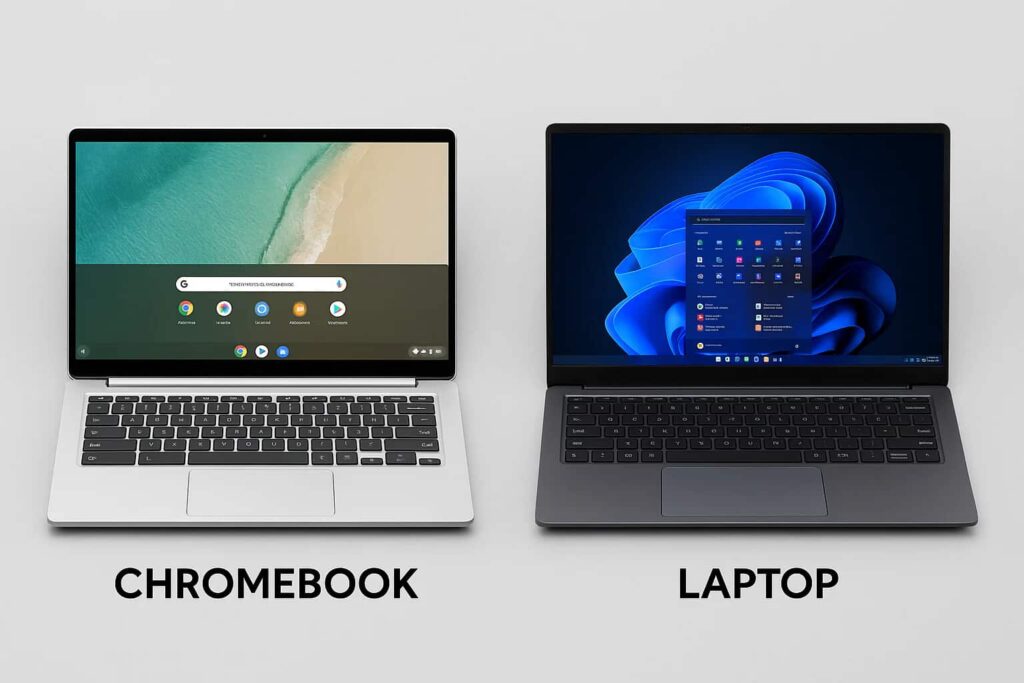
When analyzing the difference between Chromebook and laptop models, software compatibility is usually the dealbreaker for most buyers.
Can You Use Microsoft Office?
- Laptops: Yes. You can install the full desktop versions of Word, Excel, and PowerPoint. This is essential for power users who need advanced macros in Excel or heavy formatting in Word.
- Chromebooks: Sort of. You cannot install the desktop application. Instead, you must use the web-based version (Office.com) or the Android app versions. For 90% of students and home users, the web version is sufficient, but professionals may find it limiting.
Specialized Software (Adobe, CAD, Gaming)
If you are a graphic designer, video editor, or engineer, a standard laptop is usually required.
- Traditional Laptops: Can handle resource-heavy software like AutoCAD, Adobe Creative Cloud, and complex coding environments.
- Chromebooks: Limited to mobile versions of apps (via the Google Play Store) or cloud-based alternatives like Canva or Pixlr.
Pro Tip: If your daily workflow involves specialized proprietary software provided by your employer, you likely need a Windows laptop.
3. Storage: Cloud vs Local
Another major differentiator is how these devices handle your data.
Chromebooks: Cloud-First
Chromebooks usually come with very little internal storage—often 64GB or 128GB of eMMC storage (which is slower than standard SSDs).
- The Philosophy: Google expects you to save everything to the cloud (Google Drive).
- The Pro: If your Chromebook breaks or gets lost, you don’t lose your data. You just log into a new device, and your files are there.
- The Con: You are heavily dependent on an internet connection to access your files, though “Offline Mode” is improving.
Laptops: Local-First
Windows and Mac laptops typically start with 256GB or 512GB of fast NVMe SSD storage.
- The Philosophy: You store your photos, videos, and programs directly on the physical drive inside the laptop.
- The Pro: You have instant access to huge files without needing Wi-Fi.
- The Con: If the hard drive fails and you haven’t backed up your data, those files are gone.
If you are looking for a device specifically for managing large media libraries, you might want to read our guide on to see which specifications handle heavy data best.
4. Performance and Hardware
Because ChromeOS is so lightweight, Chromebooks don’t need the powerful engines that Windows laptops do.
RAM and Processors
- Chromebooks: often run efficiently on 4GB or 8GB of RAM and budget processors (like Intel Celeron or MediaTek). Because they are mostly running a browser, they feel snappy even with lower specs.
- Laptops: generally require at least 8GB (preferably 16GB) of RAM and strong processors (Intel Core i5/i7 or AMD Ryzen) to keep Windows running smoothly without lagging.
Battery Life
This is where Chromebooks often shine. Because the operating system is not draining resources in the background, even a budget Chromebook can often achieve 10 to 12 hours of battery life. A Windows laptop at the same price point might only last 4 to 6 hours.
5. Security and Maintenance
For non-tech-savvy users, security is a massive factor in the difference between chromebook and laptop.
- Chromebooks: Are incredibly secure. They use “sandboxing,” meaning if one tab gets infected with a virus, it cannot spread to the rest of the system. They also update automatically in the background. You generally do not need antivirus software.
- Laptops: Windows machines are frequent targets for malware and ransomware. While Windows Defender has improved significantly, users still need to be vigilant about updates and potential security breaches.
6. Gaming: The Reality Check
Can you game on a Chromebook?
- Native Gaming: No. You cannot install Steam (on most models) or play Call of Duty directly from the hard drive.
- Cloud Gaming: Yes. Services like Xbox Cloud Gaming and NVIDIA GeForce Now allow you to stream games on a Chromebook if you have a fast internet connection.
However, for a true gaming experience with high frame rates and zero lag, a Windows laptop with a dedicated graphics card is the only real option. Check out our recommendations on if gaming is your priority.
Comparison Table: At a Glance
| Feature | Chromebook | Windows/Mac Laptop |
| Operating System | ChromeOS (Web-based) | Windows / macOS |
| Storage | Low (Cloud-dependent) | High (Local SSD) |
| Price | Affordable ($200 – $600) | Mid to High ($500 – $2,000+) |
| Virus Protection | Built-in / Very High | Requires attention |
| Microsoft Office | Web/App version only | Full Desktop version |
| Best For | Students, Browsing, Basics | Pros, Gamers, Creators |
Which One Should You Buy?
Deciding between these two comes down to your “User Persona.”
Buy a Chromebook if:
- You are a Student: It handles essays, research, and Zoom classes perfectly.
- You are on a Budget: You can get a good experience for under $300.
- You Live in the Browser: If 90% of your time is spent on Facebook, Netflix, Gmail, and YouTube, you don’t need the complexity of Windows.
- You are Buying for a Child/Senior: The interface is simple, and it’s hard to “break” the software.
Buy a Laptop if:
- You are a Professional: You need specialized software, heavy multitasking, or full Microsoft Office.
- You are a Gamer: You want to play modern games locally.
- You Edit Media: Video rendering requires raw hardware power and local storage.
- You Work Offline: You need full access to all your files and programs without hunting for Wi-Fi.
Conclusion:
The difference between chromebook and laptop computers isn’t about quality—it’s about functionality. A Chromebook is a streamlined, secure portal to the internet, perfect for everyday tasks and education. A traditional laptop is a versatile workspace capable of handling heavy-duty software and offline tasks.
Before you spend your money, audit your daily tasks. If you can do everything in a Chrome browser tab, save yourself the money and grab a Chromebook. If you need the power of a desktop workstation on the go, stick with a traditional laptop.
Frequently Asked Questions:
Can I use Zoom on a Chromebook?
Yes, absolutely. You can use the web-based version of Zoom or download the Zoom Progressive Web App (PWA) from the Google Play Store. It works well for video calls and meetings.
Do Chromebooks slow down over time like Windows laptops?
Generally, no. Because they don’t accumulate “registry bloat” and background processes like Windows machines, Chromebooks tend to stay fast throughout their lifespan.
Can I use a printer with a Chromebook?
Yes, but it works best with “Cloud Ready” printers. Older printers that require specific driver installations from a CD or .exe file may not work with ChromeOS.
Is a Chromebook good for college?
For most majors (Humanities, Business, English), yes. However, if you are studying Engineering, Architecture, or Computer Science, you will likely need a Windows laptop to run specific programming or CAD software.
