

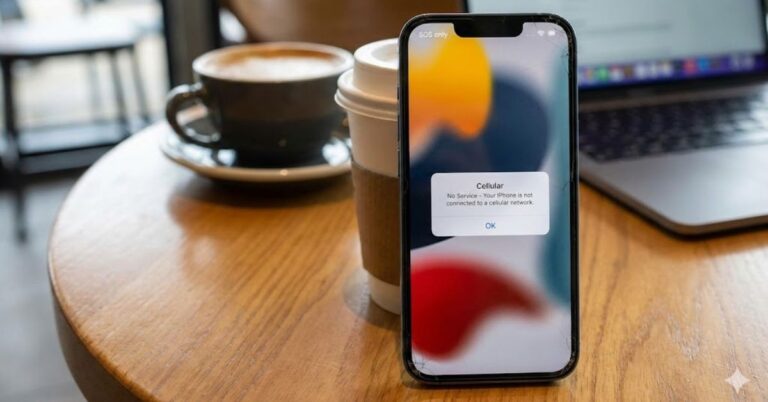
Seeing “SOS” or “SOS only” in your iPhone’s status bar where your signal bars usually sit can be alarming. It effectively turns your smart device into a brick that can’t make calls, send texts, or access the internet unless you are in a genuine emergency.
If your iPhone is stuck on SOS, you aren’t alone, and in most cases, your phone isn’t broken.
Usually, this error means your iPhone is having trouble communicating with your carrier’s cell towers, not that the hardware has failed. Whether it’s a glitchy software update, a dislodged SIM card, or a carrier outage, the solution is often simple.
In this guide, we will walk you through exactly what SOS mode means and provide a step-by-step checklist to get your service back up and running.
Table of Contents
What Does “SOS Only” Mean on iPhone?
Before diving into the fixes, it helps to understand what the device is telling you.
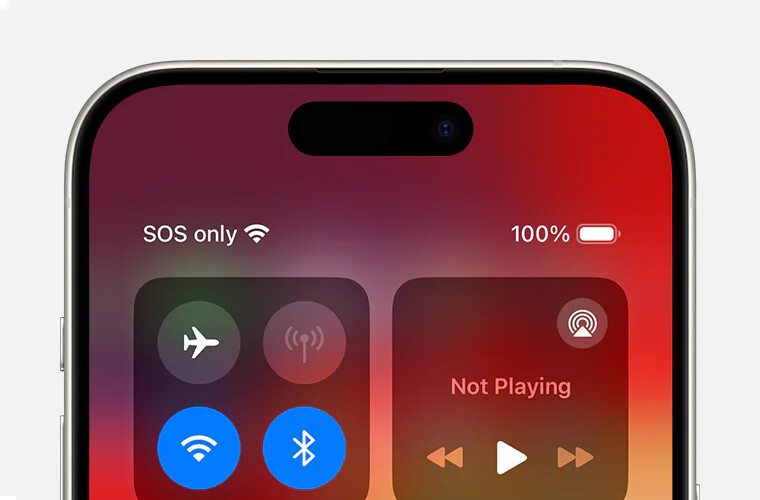
When your iPhone displays SOS or SOS only in the top right corner, it means your device is not connected to your cellular carrier’s network. However, it still has a connection to other carriers’ towers. This allows you to make emergency calls (like 911 or 112) even without your specific service plan.
It is a safety feature, but when it gets stuck, it becomes a major inconvenience.
Why Does My iPhone Say SOS?
There are usually three main culprits behind this connectivity issue:
- Carrier Issues: Outages in your area or issues with your account billing.
- SIM Card Faults: A physical SIM that has shifted in the tray or a corrupt eSIM profile.
- Software Glitches: An outdated iOS version or a bug in the network settings.
Let’s troubleshoot these systematically, starting with the easiest fixes.
How to Fix an iPhone Stuck on SOS (Step-by-Step)
Try these methods in order. They move from simple toggles to more advanced resets.
1. Toggle Airplane Mode On and Off
Think of this as a “soft refresh” for your cellular modem. It forces your iPhone to disconnect from all signals and actively search for a new connection.
- Swipe down from the top-right corner to open the Control Center.
- Tap the Airplane icon to turn it orange (Enabled).
- Wait 10–15 seconds.
- Tap the icon again to turn it off.
- Watch the status bar to see if the bars return.
2. Check Your Coverage Area
Sometimes, the issue isn’t your phone; it’s your location. If you are in a basement, a rural area, or a dense concrete building, your carrier’s signal might be too weak.
- Tip: If possible, move outside or near a window. If the SOS symbol disappears once you move, the issue is environmental, not technical.
3. Restart (or Force Restart) Your iPhone
A standard restart clears temporary cache files that might be interfering with network processes.
- For iPhone X and later: Press and hold the Side button and either Volume button until the power-off slider appears. Slide to power off, wait 30 seconds, and turn it back on.
- For iPhone SE/8 and earlier: Press and hold the Side button until the slider appears.
If a standard restart doesn’t work, try a Force Restart (Volume Up > Volume Down > Hold Side Button) to clear deeper system glitches.
4. Check for a Carrier Settings Update
Carriers (like Verizon, T-Mobile, or AT&T) frequently release hidden updates to improve connectivity. If your iPhone is stuck on SOS, you might have missed one of these files.
- Make sure you are connected to Wi-Fi.
- Go to Settings > General > About.
- Wait on this screen for about 15 seconds.
- If an update is available, a pop-up will appear asking you to update. Tap Update.
5. Turn Data Roaming On
If you are traveling internationally or even just bordering a different network region your phone might need permission to “roam” to maintain a signal.
- Go to Settings > Cellular.
- Tap on Cellular Data Options.
- Toggle Data Roaming to ON.
6. Inspect Your Physical SIM Card
If you dropped your phone recently, the SIM card might have been jarred loose. Even a speck of dust can break the connection, causing the SOS error.
- Locate the SIM tray on the side of your iPhone.
- Use a SIM ejector tool (or a paperclip) to pop the tray out.
- Inspect the card for damage or corrosion.
- Pro Tip: Gently wipe the gold chip with a soft, dry cloth and reinsert it firmly.
Note for eSIM users: You cannot remove a physical card. Instead, go to Settings > Cellular and toggle your eSIM line off and on again to reset the profile.
7. Toggle Automatic Network Selection
By default, your iPhone automatically chooses the best network. Sometimes, manually selecting your carrier forces the connection back.
- Go to Settings > Cellular > Network Selection.
- Turn off Automatic.
- A list of available carriers will appear. Tap your specific carrier (e.g., AT&T or Vodafone).
- Once connected, you can switch it back to Automatic later.
8. Reset Network Settings
This is a powerful fix that resolves about 80% of persistent SOS issues.
Warning: This will erase your saved Wi-Fi passwords and Bluetooth connections. It does not erase your photos or apps.
- Go to Settings > General.
- Scroll down to Transfer or Reset iPhone.
- Tap Reset and choose Reset Network Settings.
- Enter your passcode and confirm. Your phone will restart.
9. Update Your iOS
Apple frequently patches modem firmware issues in iOS updates. If you are running an old version of iOS, it may be incompatible with current tower protocols.
- Go to Settings > General > Software Update.
- If an update is available, download and install it (requires Wi-Fi).
When to Contact Your Carrier or Apple Support?
If you have tried all the steps above and your iPhone is stuck on SOS still, the problem may be hardware-related or account-related.
Check for Carrier Outages: Before driving to the Apple Store, check websites like DownDetector or your carrier’s official social media support pages. If there is a regional outage, no amount of troubleshooting on your phone will fix it you simply have to wait.
Contact Your Carrier If:
- Your bill is overdue (service suspension).
- Your SIM card is old or damaged (they can issue a new one).
- The device IMEI is blocked.
Contact Apple Support If:
- You see a “No SIM” error alongside SOS.
- Your phone suffered water damage or a hard drop recently.
- The internal antenna may be disconnected.
Conclusion:
Seeing your iPhone stuck on SOS is frustrating, but it is rarely permanent. By cycling through your airplane mode, checking for carrier updates, and ensuring your SIM card is seated correctly, you can usually restore your bars in minutes.
Start with the simple toggles, and only proceed to reset your network settings if necessary. If the issue persists for days, reach out to your carrier to ensure your account is in good standing.
Frequently Asked Questions:
Why did my iPhone suddenly go to SOS mode?
This often happens due to a momentary loss of signal that the software fails to recover from, a dislodged SIM card after a drop, or a carrier-side outage in your area.
Can I still receive calls on SOS only?
No. When in SOS mode, you cannot make or receive standard phone calls, SMS texts, or use cellular data. You can only call emergency services (like 911). However, if you are connected to Wi-Fi and have Wi-Fi Calling enabled, you may still be able to receive calls.
Does SOS mean my SIM card is broken?
Not necessarily. It usually means the connection between the SIM and the tower is interrupted. However, if reseating the SIM doesn’t work and other phones on the same carrier work fine, your SIM card might need replacement.
