

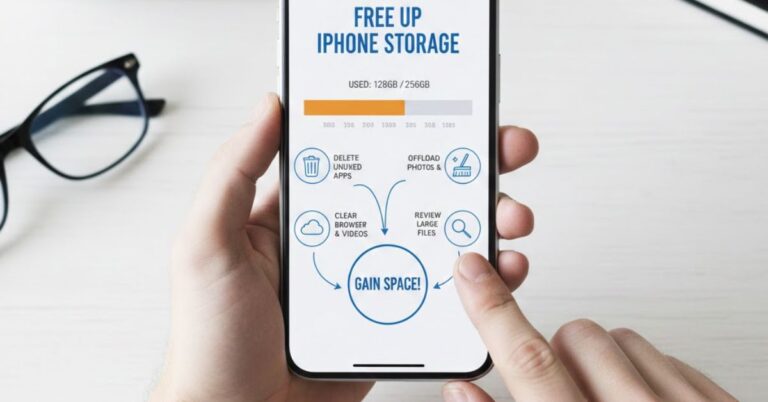
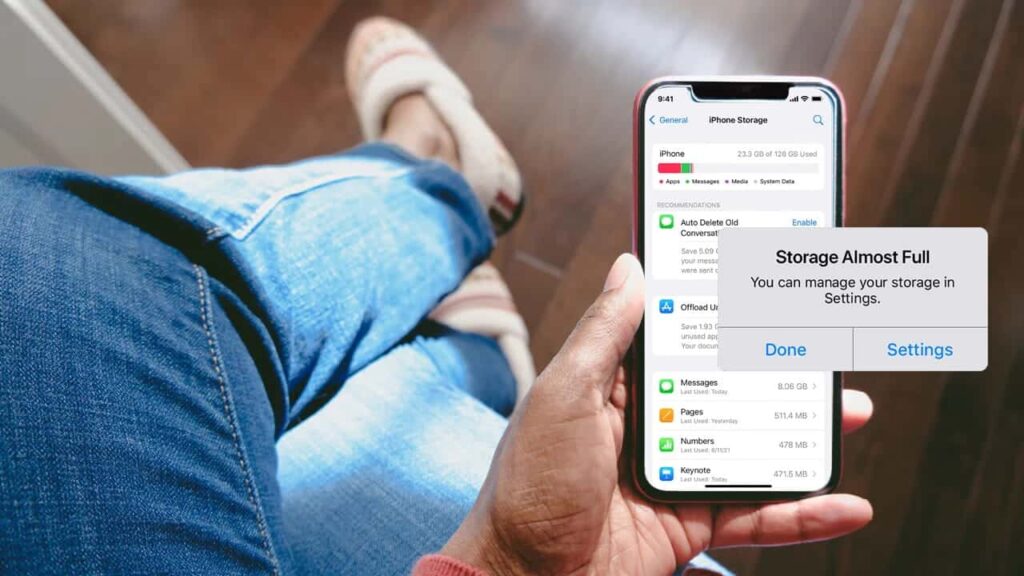
There are few things more annoying than getting ready to snap a perfect photo, only to be stopped by the dreaded “Storage Almost Full” notification. In an instant, your phone freezes up, you can’t download apps, and you certainly can’t take that video.
If you are wondering how to clean up iPhone storage without deleting your precious memories, you aren’t alone. As apps get bigger and camera quality improves, 64GB or even 128GB just doesn’t stretch as far as it used to.
In this guide, we will walk you through actionable steps to reclaim gigabytes of space, manage the mysterious “System Data,” and optimize your device for long-term performance.
Table of Contents
1. Analyze Your Storage Breakdown
Before you start deleting things at random, you need to know exactly what is hogging your space. Apple makes this easy to visualize.
Go to Settings > General > iPhone Storage.
Here, you will see a color-coded bar chart. Typically, the biggest culprits are:
- Photos: Usually the largest chunk for most users.
- Apps: specifically social media apps that cache data.
- System Data: The grey area that confuses many users.
This screen also offers Recommendations, such as “Review Large Attachments” or “Enable iCloud Photos.” These are quick wins, but for a deep clean, we need to go further.
2. Optimize Photos and Videos (The Biggest Win)
For most people, photos and videos occupy 50% or more of their available space. You don’t necessarily have to delete them; you just need to manage them better.
Enable “Optimize iPhone Storage”
This is the single most effective way to clear iPhone storage if you use iCloud.
- Go to Settings > Photos.
- Ensure iCloud Photos is turned on.
- Select Optimize iPhone Storage.
How it works: Your iPhone keeps full-resolution versions of your photos in the cloud and keeps smaller, space-saving versions on your device. When you open a photo, it downloads the high-quality version instantly.
Merge Duplicate Photos
Since iOS 16, Apple has a built-in tool to find duplicates.
- Open the Photos app and tap Albums.
- Scroll down to the “Utilities” section and tap Duplicates.
- Tap Merge to combine identical images and save space.
Empty the “Recently Deleted” Folder
When you delete a photo, it isn’t gone immediately. It sits in the “Recently Deleted” folder for 30 days. To free up space on iPhone immediately, go to Albums > Recently Deleted, tap Select, and then Delete All.
3. Offload Unused Apps vs Deleting Apps
There is a distinct difference between deleting an app and offloading it, and knowing this can save you a lot of grief.
| Action | What It Does | Best For |
| Offload App | Removes the app but keeps your documents and data. | Apps you rarely use but want to save progress on (e.g., Games). |
| Delete App | Removes the app and all associated data. | Apps you never use or can easily log back into (e.g., Facebook). |
To offload an app manually:
- Go to Settings > General > iPhone Storage.
- Tap on a heavy app.
- Select Offload App.
Pro Tip: You can also set your phone to do this automatically by enabling Offload Unused Apps in the App Store settings.
4. Clear App Cache and Data (Social Media Bloat)
Have you noticed that TikTok or Instagram takes up 5GB of space, even though the app size is only 300MB? This is “Documents & Data” mostly cached videos and images.
Apple does not provide a simple “Clear Cache” button for most apps. To fix this:
- Delete the app entirely.
- Reinstall it from the App Store.
This wipes the slate clean and can instantly recover gigabytes of storage.
5. Clean Up Old Messages and Large Attachments
Text messages, especially those with GIFs, memes, and videos, add up silently over the years.
Auto-Delete Old Conversations
If you don’t need to keep texts from 2018, let your iPhone handle the cleanup.
- Go to Settings > Messages.
- Scroll down to Keep Messages.
- Change it from Forever to 1 Year or 30 Days.
Review Large Attachments
- Go back to Settings > General > iPhone Storage.
- Tap Messages.
- Tap Photos, Videos, or GIFs and Stickers.
- Swipe left on any large file you don’t need and hit delete.
6. Tackle the Mysterious “System Data”
If you look at your storage graph and see a massive grey bar labeled System Data (formerly “Other”), you might feel frustrated. This category includes Siri voices, fonts, logs, and streaming caches.
While you can’t delete this directly, you can shrink it:
- Clear Safari Cache: Go to Settings > Safari > Clear History and Website Data.
- Update iOS: Sometimes System Data bloats due to a software bug; updating to the latest iOS often recalibrates this.
- Restart Your iPhone: It sounds simple, but a reboot clears temporary log files that clog up System Data.
7. Manage Music and Podcasts
Downloaded media is a heavy storage user. If you use Spotify, Apple Music, or Apple Podcasts:
- Check Offline Downloads: Go into your music app and remove downloaded playlists you no longer listen to offline.
- Limit Podcast Episodes: In the Podcasts settings, select Remove Played Downloads so episodes don’t pile up after you’ve listened to them.
Conclusion:
Learning how to clean up iPhone storage doesn’t have to be a daily chore. By optimizing your photos, automating message deletion, and occasionally reinstalling heavy social media apps, you can keep your device running smoothly without the constant fear of running out of space.
Take 10 minutes today to go through these steps. Your future self standing in front of a beautiful sunset with a working camera will thank you.
Frequently Asked Questions:
Why is my iPhone storage full when I have iCloud?
Even with iCloud, your phone may store full-resolution photos if “Optimize iPhone Storage” is not turned on. Additionally, iCloud does not offload apps or cache; it primarily syncs photos and documents. You still need to manage local app data.
What is “System Data” and how do I delete it?
System Data consists of caches, logs, and temporary files. You cannot simply “delete” it, but you can reduce it by clearing Safari history, restarting your iPhone, and updating your software.
Does deleting text messages free up space?
Yes, significantly. If you share photos and videos often, your Messages app can take up nearly as much space as your Photos app. Deleting old threads or large attachments is a great way to clear iPhone storage.
Is it better to offload or delete an app?
If you have data inside the app (like a game save) you want to keep, choose Offload. If the app stores data in the cloud (like Instagram or Facebook), it is better to Delete and reinstall to clear the cache.
