

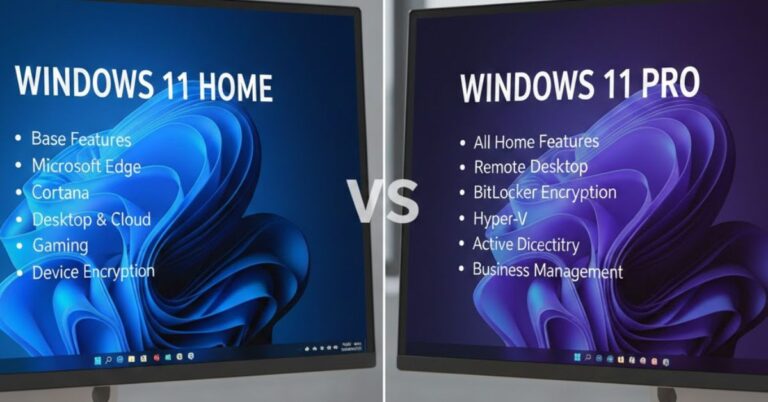
Buying a new PC or upgrading your operating system often comes with a confusing choice: Windows 11 Home or Windows 11 Pro?
On the surface, they look identical. Both feature the sleek new centered Start menu, rounded corners, and Snap Layouts. Both run the same apps and games. Yet, the Pro version costs significantly more. Is it just a marketing gimmick, or are you actually missing out on critical features by sticking with Home?
For most users, the answer is simple: Home is likely enough. However, for professionals, developers, and power users, the “Pro” label hides essential tools that can make or break your workflow.
In this guide, we will break down the windows 11 home vs pro differences, covering everything from security and virtualization to hardware limits, so you can stop guessing and make the right investment for your setup.
Table of Contents
The Core Differences at a Glance:
Before we dive deep, let’s look at the major distinctions. Windows 11 Home is designed for the consumer streamlined for web browsing, gaming, and light productivity. Windows 11 Pro is built for business environments, offering advanced management tools and tighter security protocols.
| Feature | Windows 11 Home | Windows 11 Pro |
| Best For | Casual Users, Gamers, Students | Business, Developers, Power Users |
| BitLocker Encryption | No (Device Encryption only) | Yes (Full management) |
| Remote Desktop | Client Only (Can connect out) | Host & Client (Can be connected to) |
| Virtualization | Limited | Hyper-V & Windows Sandbox |
| RAM Support | Up to 128GB | Up to 2TB |
| CPU Support | 1 Socket / 64 Cores | 2 Sockets / 128 Cores |
| Group Policy (GPO) | No | Yes |
| Microsoft Account | Required for Setup | Optional (easier for local accounts) |
Deep Dive: The “Pro” Features You Might Actually Miss
While the interface is the same, Windows 11 Pro unlocks a suite of tools hidden under the hood. Here is why users upgrade.
1. BitLocker Device Encryption
Security is the biggest selling point for the Pro version. While Windows 11 Home includes basic “device encryption,” Windows 11 Pro features the full version of BitLocker.
BitLocker allows you to encrypt your entire drive, protecting your data from theft or unauthorized access. If your laptop is stolen, a thief cannot simply pull out the hard drive and read your files on another computer. For businesses or anyone carrying sensitive data (financials, client work), this feature alone often justifies the upgrade cost.
2. Hyper-V and Windows Sandbox
For developers and tech enthusiasts, virtualization is key.
- Hyper-V: This allows you to create and run virtual machines (VMs) natively on Windows. You can run Linux, an older version of Windows, or a test environment purely in software without needing third-party tools like VirtualBox.
- Windows Sandbox: This is a lightweight desktop environment tailored for safely running applications in isolation. Downloaded a sketchy .exe file? Test it in Sandbox. Once you close the Sandbox window, everything inside is permanently deleted, ensuring no malware touches your main system.
Note: While you can technically force-enable some virtualization features on Home via command line hacks, Pro offers them natively and fully supported.
3. Remote Desktop Protocol (RDP)
Windows 11 Home includes the Remote Desktop Client, meaning you can use your Home PC to control another computer (like your work PC).
However, Windows 11 Home cannot be controlled remotely. Windows 11 Pro acts as a Host, allowing you to access your Pro desktop from anywhere whether you are on a tablet in a coffee shop or a laptop in a hotel room. If you need to access files on your main desktop while traveling, Pro is the standard solution.
4. Group Policy Editor
If you are a tinkerer, you have likely run into tutorials that ask you to open gpedit.msc. This is the Group Policy Editor, a powerful tool available only in Pro.
Group Policy allows you to manage profound system settings that aren’t available in the standard Settings menu. You can disable specific OS behaviors, block software updates from installing automatically, or configure network policies. For system administrators managing a fleet of computers, this is non-negotiable.
Hardware Limits: RAM and CPU
Do you have a supercomputer? If not, these limits likely won’t affect you, but they highlight the enterprise focus of the Pro edition.
- RAM: Windows 11 Home is limited to 128 GB of RAM. Windows 11 Pro supports a massive 2 TB.
- CPU: Home supports only one physical CPU socket with up to 64 cores. Pro supports two CPU sockets and up to 128 cores.
Unless you are building a high-end workstation for 3D rendering or massive data processing, the 128 GB limit on Home is more than enough. Even the most demanding modern games rarely utilize more than 32 GB.
Does Windows 11 Pro Perform Better for Gaming?
This is a common misconception. No, Windows 11 Pro does not offer higher FPS (frames per second) than Windows 11 Home.
Both versions share the exact same performance architecture. Features like DirectStorage (for faster load times) and Auto HDR (for better visuals) are present in both editions. In fact, because Pro runs additional background services for encryption and management, Home is arguably “lighter” out of the box, though the real-world difference is negligible.
If you are a gamer, save the money on the OS license and put it toward a better GPU or more RAM.
Who Should Buy Windows 11 Home?
You should stick with Windows 11 Home if:
- You use your PC primarily for gaming, streaming, and web browsing.
- You are a student writing papers and doing research.
- You don’t need to connect to a corporate domain or manage multiple computers.
- You have a budget-conscious build.
For 90% of users, Home is perfectly optimized and capable.
Who Needs Windows 11 Pro?
You should upgrade to Windows 11 Pro if:
- You own a business: BitLocker and Windows Information Protection (WIP) are essential for protecting client data.
- You are a Developer: You need Hyper-V to test apps or Windows Sandbox to test software safely.
- You are an IT Professional: You need Group Policy and Domain Join capabilities to manage the network.
- You value privacy: You prefer the enhanced encryption options for your personal files.
Conclusion:
When analyzing the windows 11 home vs pro differences, it comes down to utility versus cost. Windows 11 Home is a robust, secure, and modern operating system that handles gaming and daily tasks flawlessly.
Windows 11 Pro is a specialized tool for those who need to manage their system at a deeper level or secure their data with enterprise-grade encryption. If you aren’t sure if you need the specific features like BitLocker or Hyper-V, you almost certainly don’t need to pay extra for Pro.
FAQ:About Windows 11 Editions
Can I upgrade from Windows 11 Home to Pro later?
Yes. You can upgrade anytime through the Microsoft Store. It usually costs around $99 to upgrade a Home license to Pro without reinstalling Windows.
Does Windows 11 Pro force me to use a Microsoft Account?
Technically, yes. Recent updates push Microsoft Accounts for both versions during setup. However, Windows 11 Pro offers easier options to set up a valid “offline” or local account if you select the “Set up for work or school” options and domain join features, whereas Home makes bypassing the Microsoft Account requirement much more difficult.
Is Windows 11 Pro faster than Home?
No. There is no speed difference for general tasks or gaming. The “Pro” designation refers to features, not raw speed.
Do I need Windows 11 Pro for coding?
Not necessarily. You can code on Home just fine (using VS Code, Python, etc.). However, if your development work requires Docker, virtual machines, or specific emulators, the Hyper-V support in Pro will make your life much easier.
