

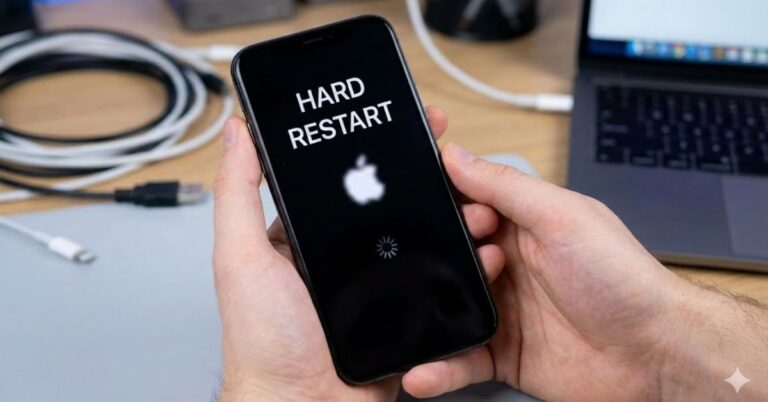
There are few moments more panic-inducing than when your smartphone screen freezes. You tap, you swipe, you press buttons, but nothing happens. Your digital lifeline has become an expensive brick. Before you rush to the Genius Bar or worry about data loss, there is a simple, powerful solution: you need to learn how to hard restart iPhone.
Also known as a “force restart,” this maneuver physically cuts the power to the phone’s logic board and forces it to reboot, clearing out temporary glitches without erasing your photos or messages. Whether you are holding the latest iPhone 16 or rocking a classic iPhone 8, this guide covers every generation.
Below, we break down the exact button combinations for every model, explain the difference between a restart and a reset, and troubleshoot what to do if the hard restart fails.
Table of Contents
What Is a Hard Restart (and Is It Safe?)
Before we dive into the buttons, let’s clear up a common confusion in the Apple ecosystem. A hard restart (or force restart) is not a factory reset.
- Hard Restart (Force Restart): This is simply turning the phone off and on again forcefully. It clears the cache and RAM but keeps all your data safe. Think of it like pulling the plug on a frozen computer.
- Factory Reset: This wipes your phone clean and returns it to out-of-the-box settings.
Pro Tip: You should perform a hard restart only when your iPhone is unresponsive, the screen is black, or apps are crashing repeatedly. For normal sluggishness, a standard “soft” restart (power off via the menu) is usually sufficient.
How to Hard Restart iPhone (Face ID Models, iPhone 8, & SE 2/3)
Apple changed the button mechanism starting with the iPhone 8 and X. If you have a modern iPhone without a Home button (or the iPhone SE 2nd/3rd Gen), the timing requires a bit of dexterity.
Supported Models:
- iPhone 16, 15, 14, 13, 12, 11 series
- iPhone XS, XR, X
- iPhone 8 and 8 Plus
- iPhone SE (2nd and 3rd Generation)
The “Volume-Volume-Hold” Method:
This sequence must be done quickly. Do not hold the volume buttons down; just click them.
- Press and quickly release the Volume Up button.
- Press and quickly release the Volume Down button.
- Immediately press and hold the Side Button (the power button on the right edge).
- Keep holding the Side Button. The “slide to power off” screen might appear—ignore it.
- Release the Side Button only when the Apple logo appears on the screen.
Your iPhone screen will go black, and then the white Apple logo will pop up. Once it reboots, your screen should be responsive again.
How to Force Restart iPhone 7 and 7 Plus
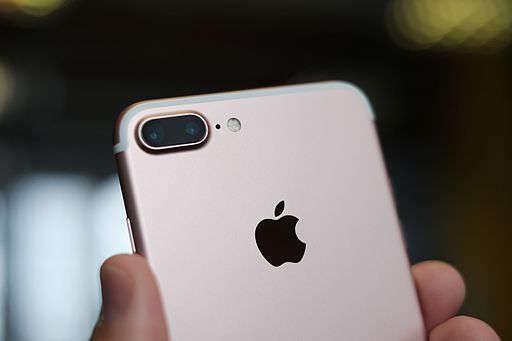
The iPhone 7 generation uses a solid-state Home button, which means it doesn’t physically click. Because of this, Apple introduced a specific button combination unique to these two models.
Instructions:
- Press and hold the Volume Down button and the Side Button (power) simultaneously.
- Keep holding both buttons for about 10 seconds.
- Release both buttons when you see the Apple logo.
How to Hard Restart iPhone 6s, 6, and iPhone SE (1st Gen)
If you are using an older device with a physical clicking Home button, the process is slightly different. This applies to the iPhone 6s, iPhone 6, and the original iPhone SE.
Instructions:
- Press and hold the Home Button (bottom center) and the Sleep/Wake Button (top or side) simultaneously.
- Keep holding both until the screen goes black and the Apple logo appears.
- Release both buttons.
Troubleshooting: What If the Hard Restart Doesn’t Work?
If you have followed the steps on how to hard restart iPhone and the device remains unresponsive, the issue might be hardware-related or battery-related.
1. The “Charge and Wait” Strategy
Sometimes, a frozen screen masks a depleted battery. Even if the screen is on, the voltage might be too low to complete a reboot process.
- Plug your iPhone into a reliable power source for at least one hour.
- After charging, try the force restart sequence again while it is still plugged in.
2. Check for Physical Damage
Did the phone freeze after a drop or water exposure? [Link to Internal Page: iPhone Repair Services] can assess if the logic board or display connector has been damaged. Internal damage often mimics software freezes.
3. Recovery Mode (The Last Resort)
If the Apple logo appears but gets stuck (boot loop), or the screen remains blue or red, you may need to connect it to a computer (Mac or PC) and use iTunes or Finder to enter Recovery Mode.
When Should You Force Restart?
While knowing how to hard restart iPhone is a vital skill, you shouldn’t use it every day. It is an emergency brake, not a standard brake.
Use a Force Restart When:
- The screen is completely frozen or black.
- The touchscreen is not registering your taps.
- The phone is stuck in a boot loop (Apple logo flashing).
- You cannot power off the phone using the normal slider method.
Avoid Force Restarting When:
- The phone is just updating an app.
- You are in the middle of an iOS update (interrupting this can corrupt the OS).
If your phone frequently freezes, consider checking your storage space or looking into [Link to Internal Page: iPhone Battery Replacement] to ensure your battery supports peak performance capabilities.
Conclusion:
Technology is fantastic until it stops working. Knowing how to hard restart iPhone is the quickest way to solve the dreaded “frozen screen” issue without visiting a repair shop. Whether you have the newest iPhone 16 or a trusty iPhone 7, the button combinations listed above are your first line of defense against software glitches.
Remember, if your phone freezes frequently, it may be a sign of a deeper software issue or a degrading battery.
Does your iPhone screen keep freezing even after a restart? If you’ve tried the steps above and are still facing issues, it might be time for a professional diagnostic. [Link to Internal Page: Contact Support] and let our experts help you get your device back to perfect health.
FAQ:About iPhone Hard Restarts
Will a hard restart delete my photos?
No. A hard restart (force restart) does not delete any data. It simply forces the operating system to reboot. Only a “Factory Reset” deletes data.
Why isn’t my iPhone forcing a restart?
The most common reason is timing. On newer models (iPhone 8 and later), the “Volume Up, Volume Down” sequence must be very fast. If you pause between clicks, it won’t work. Try the sequence again, speeding up the button presses.
Is a hard reset the same as a force restart?
Technically, no, though people use the terms interchangeably. In technical terms, “Force Restart” is the reboot method described here. “Hard Reset” is often used to describe wiping the phone to factory settings. Always clarify before performing a “reset.”
How often should I restart my iPhone?
To keep your device running smoothly, a normal (soft) restart once a week is a good habit. It clears temporary cache files and frees up RAM.
