

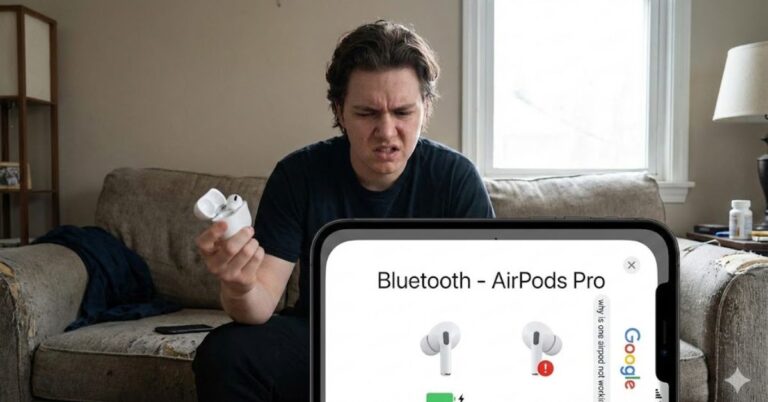
You know the feeling: you pop your AirPods in, ready to zone out to a podcast or your favorite playlist, and… silence. One side is playing perfectly, but the other is dead silent. You wiggle it, tap it, and put it back in the case, but nothing happens.
If you are wondering, “Why is one AirPod not working?” you aren’t alone. This is widely considered the single most common issue with Apple’s wireless earbuds, affecting everything from the original Gen 1 models to the latest AirPods Pro and Max.
The good news? It’s rarely a permanent hardware failure. In 90% of cases, the issue is caused by a charging glitch, a software “handshake” error, or a hidden settings menu you didn’t even know existed.
In this guide, we’ll walk you through the troubleshooting steps used by pros to fix an unresponsive AirPod starting with the simplest fixes and moving to advanced resets.
Table of Contents
1. The “Ghost Charging” Issue: Check Your Case Contacts
Before we dive into software settings, we need to rule out physics. The most common reason for one AirPod not working is that it simply has no battery left, even if it’s been sitting in the case all night.
This happens due to “Ghost Charging.”
AirPods charge via tiny metal contact points at the bottom of the stem. If a microscopic piece of pocket lint, earwax, or dust blocks that connection, the AirPod will sit in the case thinking it’s charging, but it’s actually slowly draining to 0%.
How to Fix It:
- Inspect the Case: Shine a light into the charging well of the silent AirPod. Look for dark specks or debris at the very bottom.
- Clean the Contacts: Use a dry Q-tip (cotton swab) or a soft-bristled toothbrush to gently sweep out the bottom of the case.
- Wipe the Stem: Clean the silver tip of the AirPod stem with a microfiber cloth.
- The Red Light Test: Place the dead AirPod back in the case. Watch the LED light on the case immediately. If it flashes amber or green, it has detected the earbud. If the light doesn’t react at all, the connection hasn’t been made.
[Insert Link: URL 1 | Anchor: troubleshooting AirPods charging issues]
2. Toggle Bluetooth and “Forget” the Device
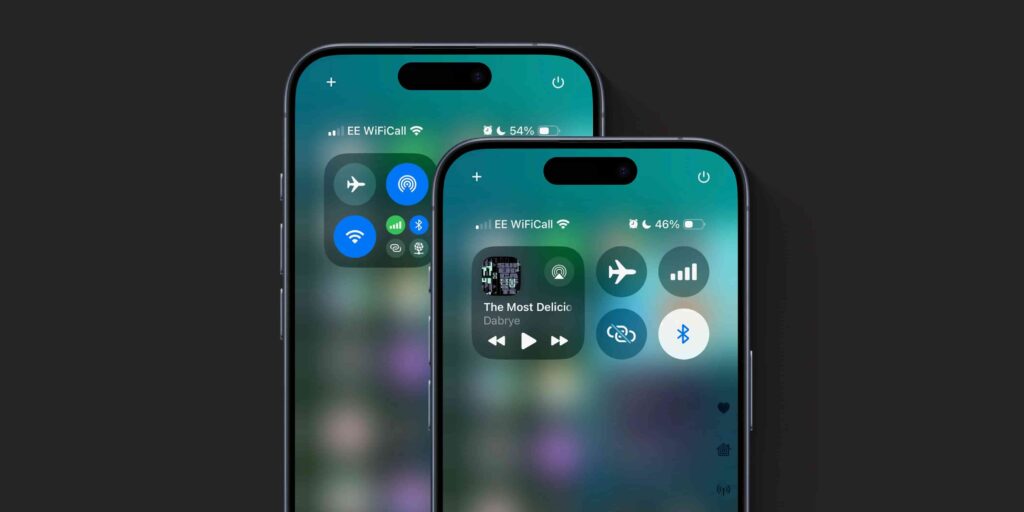
Sometimes, the Bluetooth connection data gets corrupted. Your iPhone “thinks” it’s connected to both buds, but it’s only sending a signal to one. A quick refresh of the Bluetooth protocol can force the phone to re-recognize the silent AirPod.
Step-by-Step Refresh:
- Put both AirPods back in the charging case and close the lid.
- Go to Settings > Bluetooth on your iPhone or iPad.
- Find your AirPods in the list and tap the blue “i” icon next to them.
- Select “Forget This Device” and confirm.
- Turn Bluetooth OFF entirely, wait 10 seconds, and turn it back ON.
- Open the AirPods case lid near your phone and follow the setup animation to reconnect.
This forces your device to treat the AirPods as a “new” connection, often resolving the audio split.
3. Check the “Stereo Balance” Setting
This is the hidden culprit that drives people crazy.
Buried deep in your iPhone’s accessibility settings is a slider that controls audio balance (Left vs. Right). Sometimes, after an iOS update or an accidental pocket tap, this slider gets moved all the way to one side. If the slider is 100% to the Right, your Left AirPod will stop working entirely, acting as if it’s dead.
How to Check Your Balance:
- Open Settings.
- Scroll down to Accessibility.
- Tap on Audio & Visual.
- Look for the Balance slider.
- The Fix: Ensure the button is perfectly in the center (0.00).
If this was the issue, your sound should return instantly without any restarting.
4. The “Hard Reset” (Factory Reset)
If cleaning, re-pairing, and checking settings didn’t work, it’s time for the nuclear option: the Factory Reset.
Resetting your AirPods returns them to their “out of the box” state. It clears the firmware cache and re-syncs the two earbuds to each other (not just to your phone). This is crucial because AirPods actually connect to each other first before connecting to your device. If that inter-bud connection fails, you get the “one AirPod not working” error.
How to Factory Reset AirPods:
- Forget the device from your Bluetooth menu (as shown in Step 2).
- Put both AirPods in the case and keep the lid open.
- Locate the small setup button on the back of the case (it’s flush with the white plastic).
- Press and hold the button for about 15 seconds.
- Watch the light: The status light (inside the case or on the front, depending on your model) will flash Amber first, then turn White.
- Once it flashes white, release the button.
Your AirPods are now fully reset. Hold them near your iPhone to initiate the pairing process again.
[Insert Link: URL 2 | Anchor: complete guide to resetting AirPods]
5. Force a Firmware Update
Unlike an iPhone update, you can’t just tap “Update Now” for AirPods. Firmware updates happen automatically in the background, but sometimes they get stuck. If one AirPod is running an older firmware version than the other (common if you recently replaced one earbud), they won’t sync.
How to Trigger an Update:
There is no button for this, but you can “force” the environment for an update:
- Put both AirPods in the charging case.
- Plug the case into a power source (Lightning or USB-C cable).
- Place your paired iPhone right next to the charging case.
- Leave them alone for 30 to 45 minutes.
If an update is pending, this proximity will force the transfer. You can check your firmware version by going to Settings > Bluetooth > [Your AirPods] > About.
6. Reset Network Settings
This is a more drastic step, but it’s effective for persistent connectivity glitches. Resetting your network settings clears all Bluetooth pairings, Wi-Fi passwords, and VPN configurations. It essentially scrubs your phone’s wireless radio clean.
- Go to: Settings > General > Transfer or Reset iPhone > Reset > Reset Network Settings.
- Warning: You will need to re-enter your Wi-Fi passwords after this.
After the phone reboots, try pairing your AirPods again. This often fixes deep-rooted Bluetooth handshake failures that prevent stereo audio.
7. When Hardware is the Issue (The “Death Rattle”)
If you have tried all six steps above and one AirPod is still silent, you might be dealing with hardware failure.
AirPods are complex pieces of technology packed with delicate components. A few common hardware failures include:
- Battery Death: Lithium-ion batteries degrade over time. If you use one AirPod more than the other (e.g., for calls), that one will die months or years before the other.
- Speaker Mesh Blockage: Sometimes the AirPod is working, but the speaker mesh is so clogged with earwax that the sound is muffled to near-silence. Try sucking gently on the main speaker grill (gross, but effective) or using mounting putty to pull debris out.
- Water Damage: Even “water-resistant” models like the Pros can suffer corrosion if sweat gets inside the chassis.
What Are Your Options?
If your warranty (AppleCare+) is active, Apple will replace a malfunctioning AirPod for free. If you are out of warranty, you don’t necessarily need to buy a whole new set. Apple (and third-party sellers) sell single replacement AirPods.
You can buy just a left or just a right unit, put it in your case, and use the “Hard Reset” method mentioned in Step 4 to sync the new bud with your old one.
Conclusion: Don’t Toss Them Yet
Panicking because one AirPod is not working is a rite of passage for Apple users. However, before you shell out $150+ for a new pair, trust the process. Start with a deep clean of the charging contacts, check that sneaky Audio Balance slider, and perform a full Factory Reset.
Most of the time, the problem is a simple digital miscommunication, not a broken device.
Frequently Asked Questions:
Why is my left AirPod not working but the right one is? T
his is often due to the “master-slave” relationship Bluetooth devices sometimes use, or simply because the left AirPod’s charging contact in the case is dirty. Clean the case thoroughly and try resetting the pair.
Can I reset just one AirPod?
No, you cannot reset a single AirPod. The reset process happens via the charging case and applies to the set. Both earbuds must be in the case to perform a factory reset.
Why does my AirPod say connected but no sound comes out?
This is typically a software audio routing issue. Try turning off “Automatic Ear Detection” in your Bluetooth settings. If that fixes it, the proximity sensor on your AirPod might be dirty or failing.
How do I know if my AirPod is permanently broken?
If the AirPod fails to light up the case LED (green/amber) even after cleaning the contacts and charging for an hour, the battery is likely completely dead or the internal chip has failed.
Does Apple replace single AirPods?
Yes, Apple offers a service fee to replace a single lost or broken AirPod. It is significantly cheaper than buying a completely new set.
